Customizing the Layout
Updating the Logo
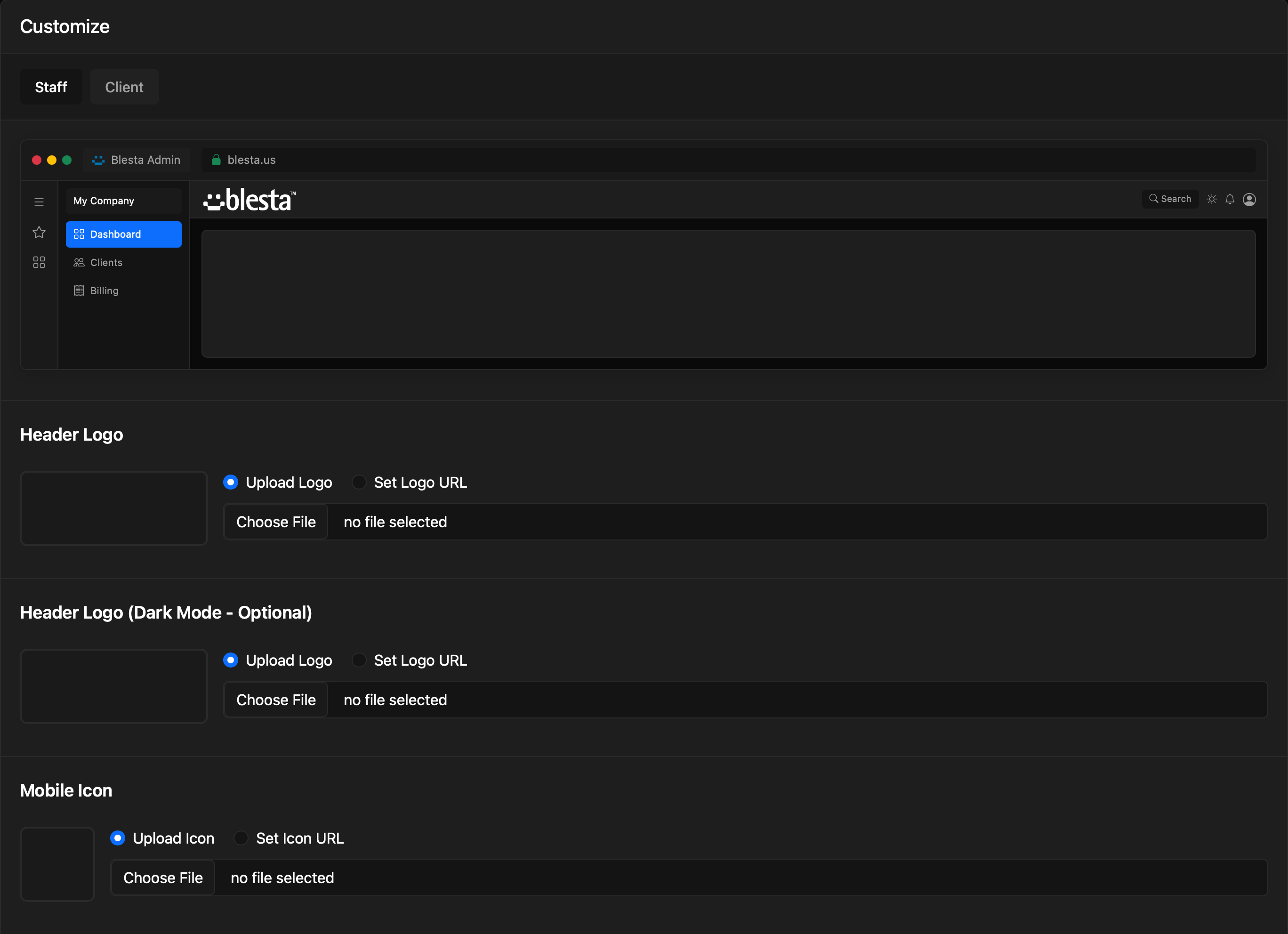
To update the logo, visit [Settings] > [Company] > [Look and Feel] > Customize. There are two tabs, the default, Staff, and the other, Client control staff and client logos respectively. This area allows to update the default Blesta logo, upload a new logo from your computer, or enter a URL to the image you want to use as the logo. It is possible to define a separate logo for the Staff and Client areas.
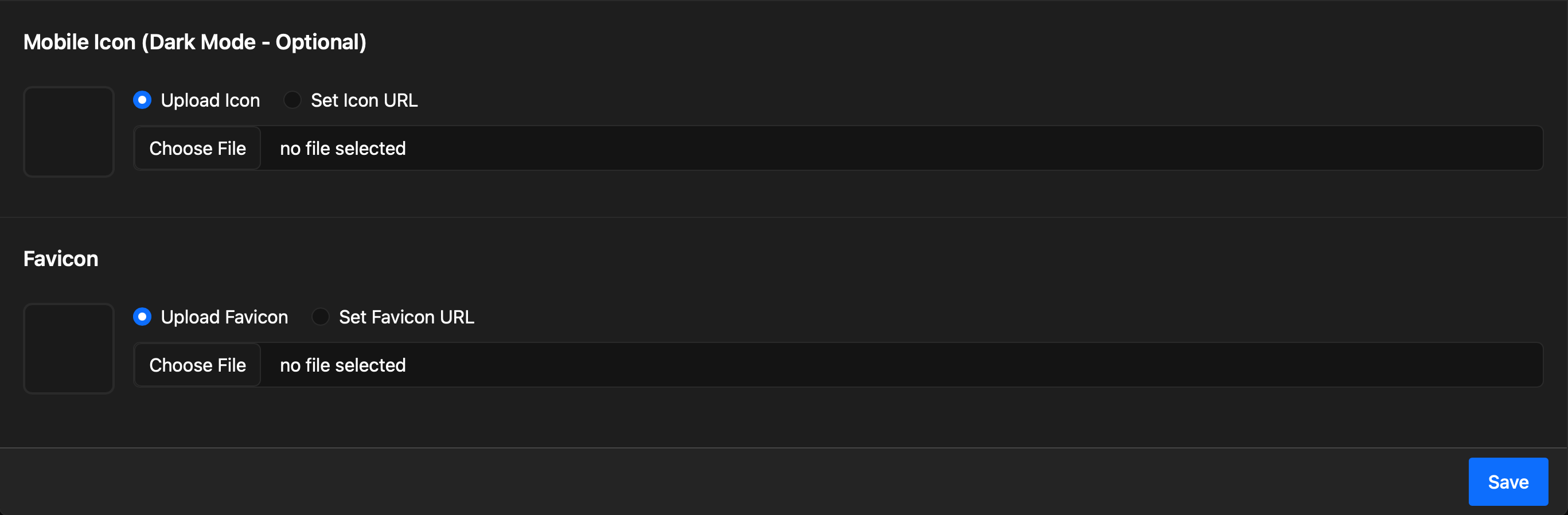
The Customize page now lives under Settings > Company > Look and Feel > Customize and supports separate light-mode and dark-mode uploads for both the Header Logo and the Mobile Icon, plus a Favicon field. For each, choose Upload (file from your computer) or Set URL (externally-hosted image).
If your logo is high-contrast against both light and dark backgrounds, a single light-mode upload is fine — the dark-mode fields fall back to the light-mode value when blank. Otherwise upload a dark-mode variant so logo text or accents stay readable when staff switch themes.
Customizing the Information Cards
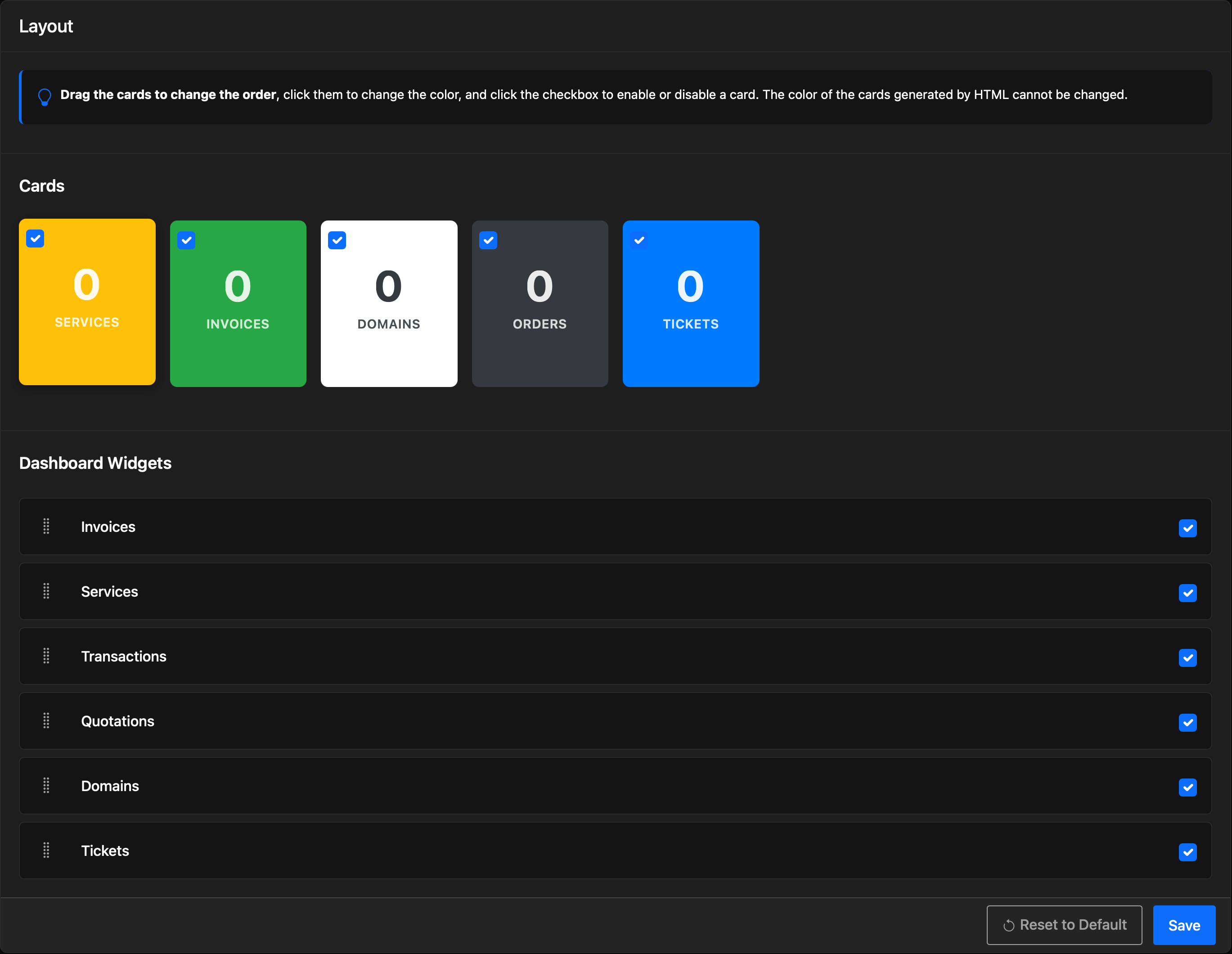
To update the layout, visit [Settings] > [Company] > [Look and Feel] > Layout. This area allows to re-organize, enable, disable, and modify the information cards in both the Staff and Client areas. The background color of the cards can be changed or replaced with an image by entering the URL to the image, as well as the color of the text inside the card. To replace the background color of a card with an image, click on the picture icon in the bottom right of the color selector and enter the URL of the image to be used.