Enabling MFA (Two-Factor Authentication)
MFA ( Multi-Factor Authentication) is highly recommended as a security precaution against unauthorized access to your account. Blesta supports both MOTP and TOTP for Two-Factor Authentication. The following mobile applications are recommended for Android and iOS, respectively, and many others are supported as well.
Staff
Staff can enable 2FA under [My Info] by selecting the option under Two-Factor Authentication, either Time-based HMAC One Time Password (Recommended), or Mobile One Time Password. Scan the QR code, and then enter your token and account password to save.
Clients
Clients can enable 2FA my click on their name in the upper right corner of the client area, then [Manage Account] > Authentication tab and checking the box "Enable Two-Factor Authentication". A QR code is presented and can be scanned by Google Authenticator. The client must then enter their token and confirm their password to save.
For Android
- Google Authenticator - https://play.google.com/store/apps/details?id=com.google.android.apps.authenticator2&hl=en
- Android Token - http://code.google.com/p/androidtoken/
For iOS (iPhone, iPad)
- Google Authenticator - https://itunes.apple.com/us/app/google-authenticator/id388497605?mt=8
- OATH Token - http://itunes.apple.com/us/app/oath-token/id364017137?mt=8
Google Authenticator
Blesta includes a QR code to make it easy to enable 2FA with Google Authenticator. This code can be scanned by the Google Authenticator app on your phone to enable 2FA.
For YubiKey
- For instructions on setting up your YubiKey to generate TOTP tokens visit https://support.yubico.com/support/solutions/articles/15000006419-using-your-yubikey-with-authenticator-codes
- If you follow the instructions provided by yubico you will need to convert your Google secret key from base32 into hexadecimal (base16) format before adding it to Blesta. Instructions on doing that are provided in the note above.
To set up Two-Factor Authentication, visit the "My Info" link at the top of any staff page.
If you have access to add additional Staff, you can set up Two-Factor Authentication at account creation under [Settings] > [System Settings] > Staff.
For Yubico Key App
Yubico now has an easy to use application which works with the NFC keys, we use the YubiKey 5 NFC, the Security key doesn't work with their TOTP App.
- Download their app from: https://www.yubico.com/products/yubico-authenticator/
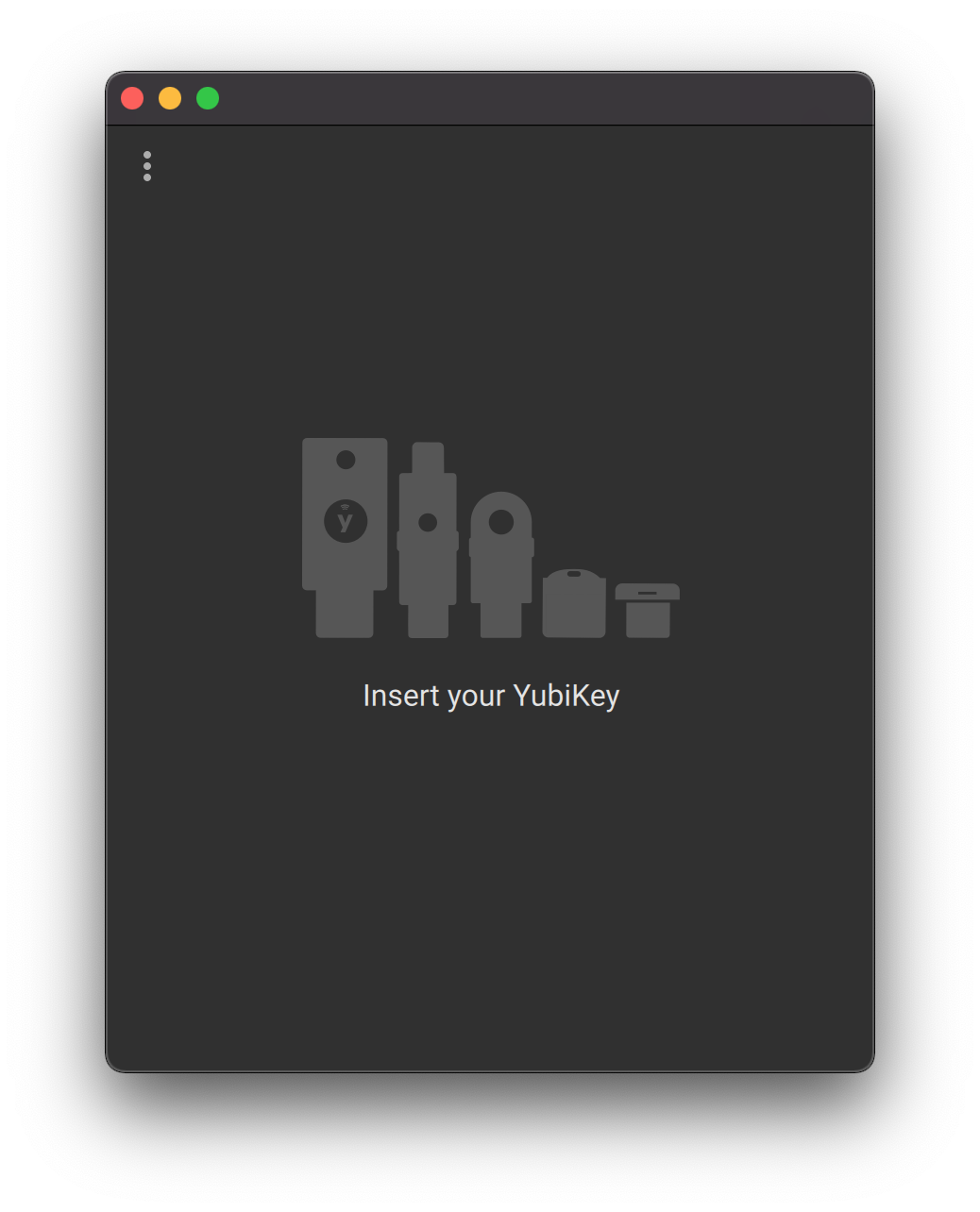
- Load up the application and plug in your key, then click on Add
 button at the top right.
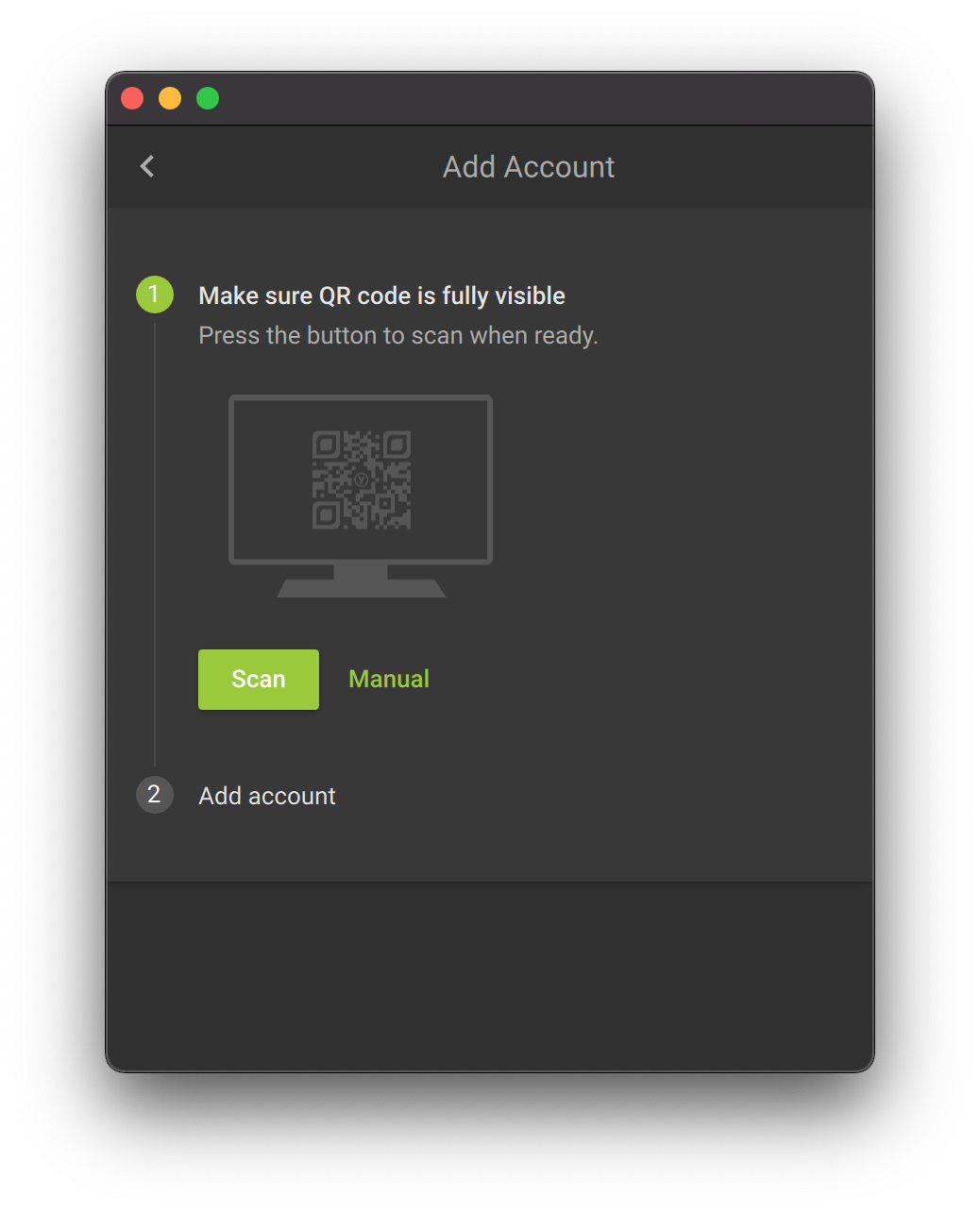
- Go to the "My Info" part of Blesta Administrator and select "Time-based HMAC One Time Password" under Two Factor Authorisation then hit Scan.
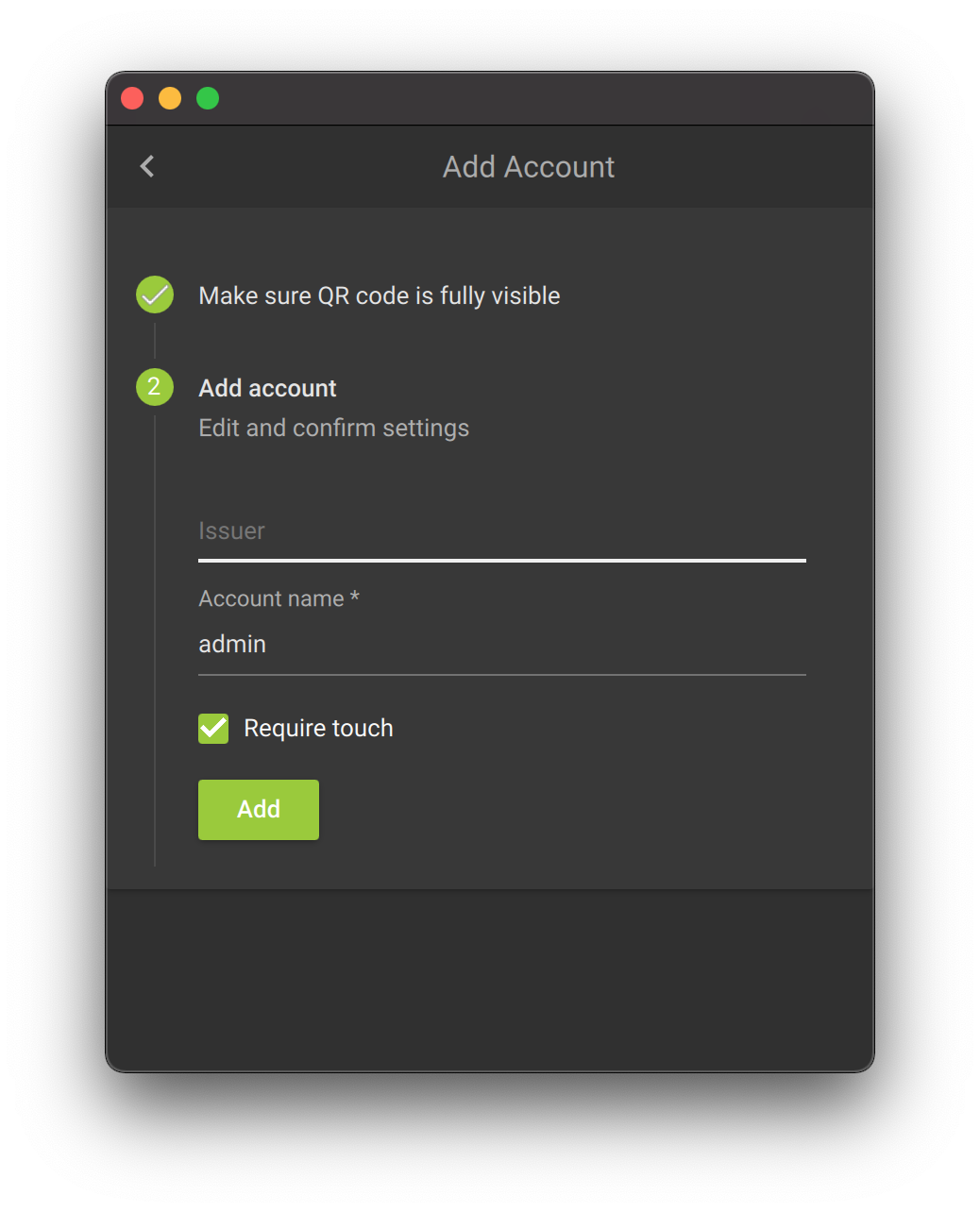
- Enter your "Issuer" we recommend the url to your Blesta or something like Blesta Admin, and the "Account name" has to be your account username to the Admin panel. We recommend you require touch to unlock the passcode and also click Add to add the account to your Yubico key.
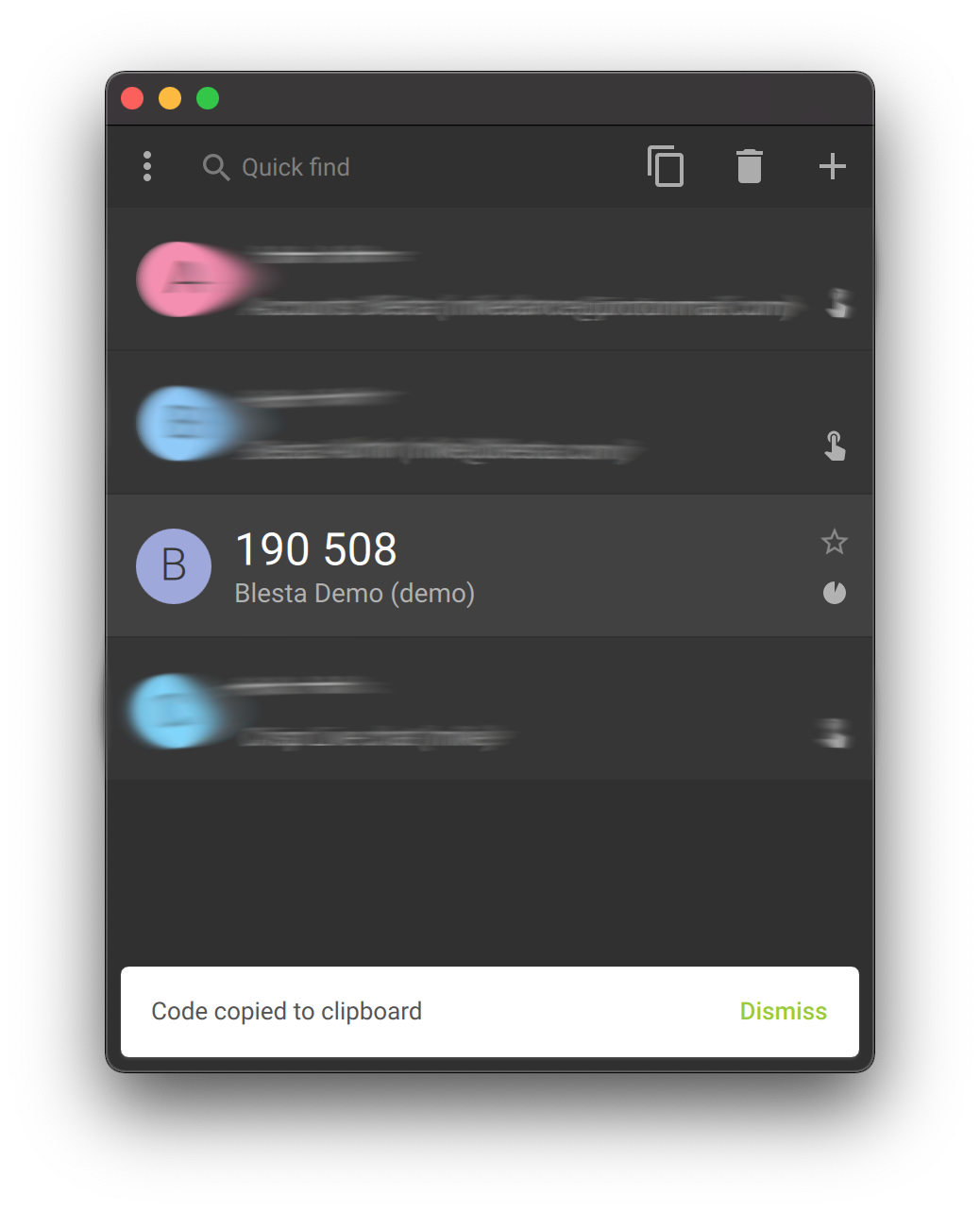
Convert from BASE32 to BASE16
Some authenticators require a little manipulation to get the key in the correct format. Blesta expects TOTP keys to be in hexadecimal format (base16), but Google Authenticator uses base32. So we have to convert our Google Authenticator keys into hexadecimal before storing in Blesta.
There are a number of online utilities to perform this operation. Here’s one:http://www.darkfader.net/toolbox/convert/.
As an example, “PEHMPSDNLXIOG65U” (in base32) becomes “790ec7c86d5dd0e37bb4″ in hexadecimal. Simply select Time-based One Time Password as the two factor authentication method in Blesta then enter the converted (hexdecimal) value and you’re good to go.
Here's a python script that can convert it.
convert.py
import binascii
import base64
hex_key = "ENTERYOURBASE16KEYFROMBLESTA" # Your base16 key
binary_key = binascii.unhexlify(hex_key)
base32_key = base64.b32encode(binary_key).decode('utf-8').rstrip('=')
print(base32_key) # Outputs base32 key
Help! I've lost my 2FA key and can't login.
If you are locked out of Blesta because you lost your 2FA token, you must disable Two-Factor mode in the database for your user. To do so, you must make a change manually to the database using a utility like phpMyAdmin. Find your user in the "users" table, and update users.two_factor_mode to none, and save. You will now be able to login with just your username and password. Once you have logged in, you can set up 2FA again under My Info.