Enhance
Enhance is a modern web hosting control panel. Learn more about Enhance on their website at https://enhance.com.
Supported Features
| Create | Cancel | Suspend | Unsuspend | Management | Config Options |
|---|---|---|---|---|---|
| YES | YES | YES | YES | NO | NO |
Installing Enhance
To install the Enhance module, visit [Settings] > [Company] > [Modules] > Available, and click the "Install" button for Enhance.

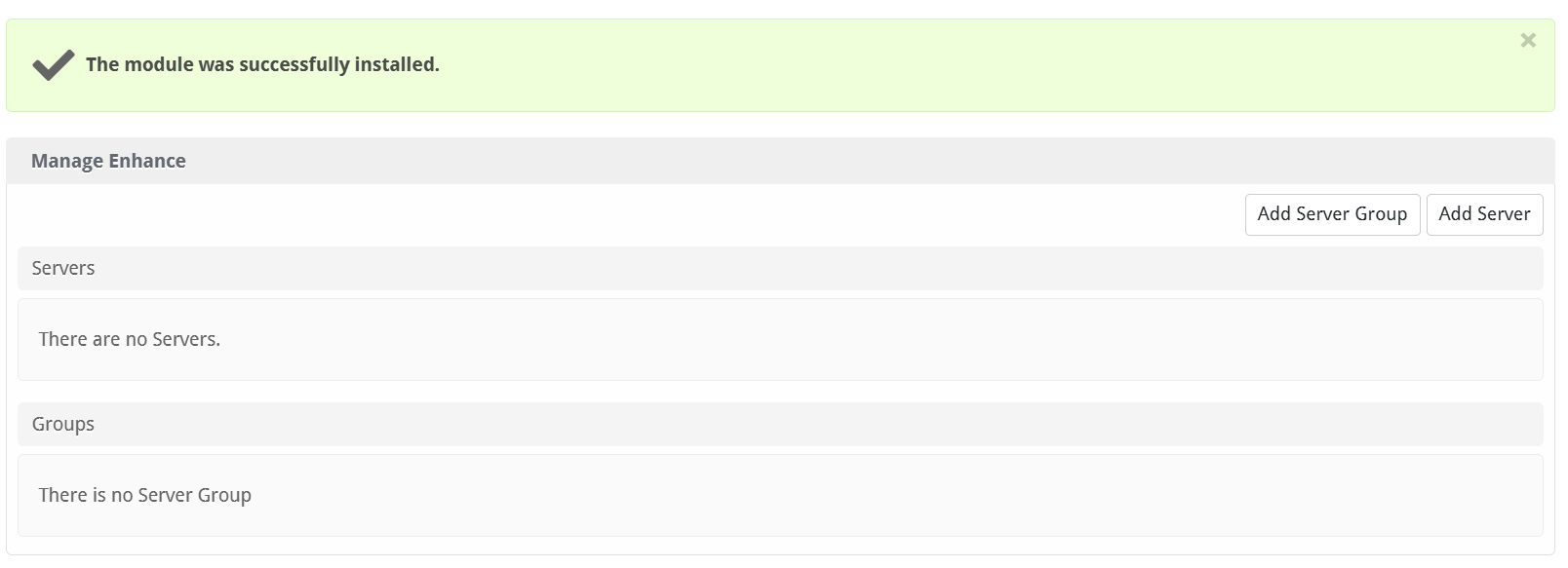
A message will be displayed, indicating that the module was successfully installed. Then click the "Add Server" button.
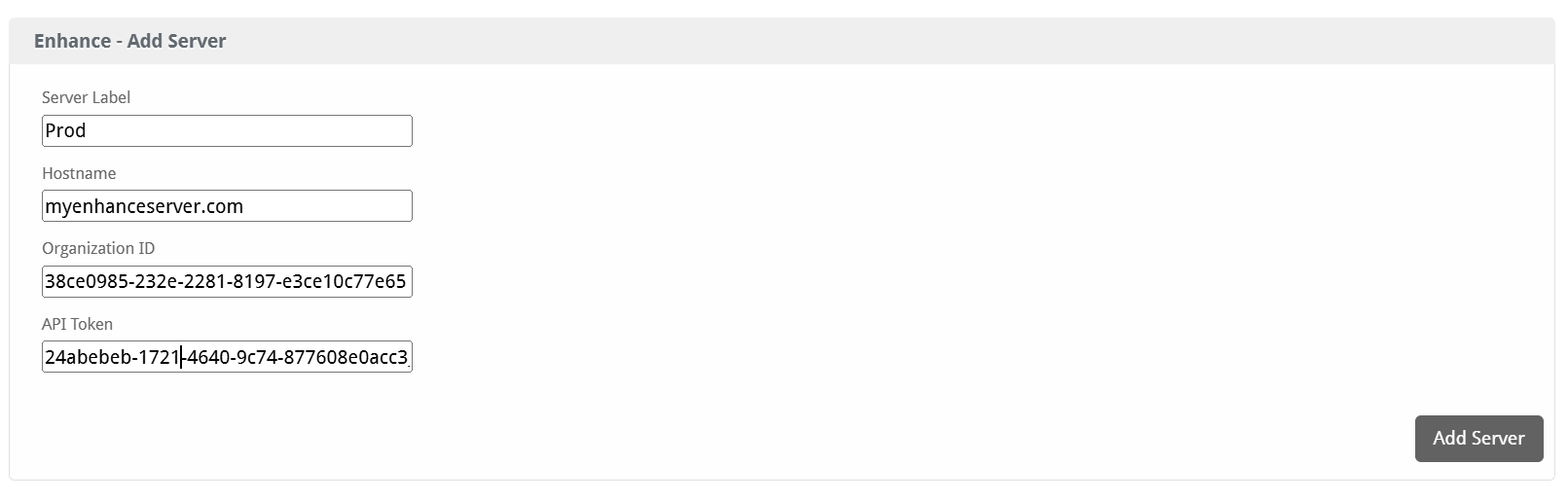
Enter the details for your Enhance server.
| Field Name | Description |
|---|---|
| Server Label | Enter a label for this Enhance server, it can be anything you like. |
| Hostname | Enter the FQDN hostname for your Enhance server, e.g. "server1.domain.com". |
| Organization ID | Enter your Enhance Organization ID. This is available in Enhance under Settings > Access Tokens |
| API Token | Enter the API Token. This is available in Enhance under Settings > Access Tokens |
After filling out these options, click "Add Server" to add your Enhance server.
Server Groups
Server groups are useful for categorizing Enhance servers. When creating a Package, a specific server, or a server group may be selected for provisioning. Blesta will automatically select an Enhance server to provision with when a server group is chosen.
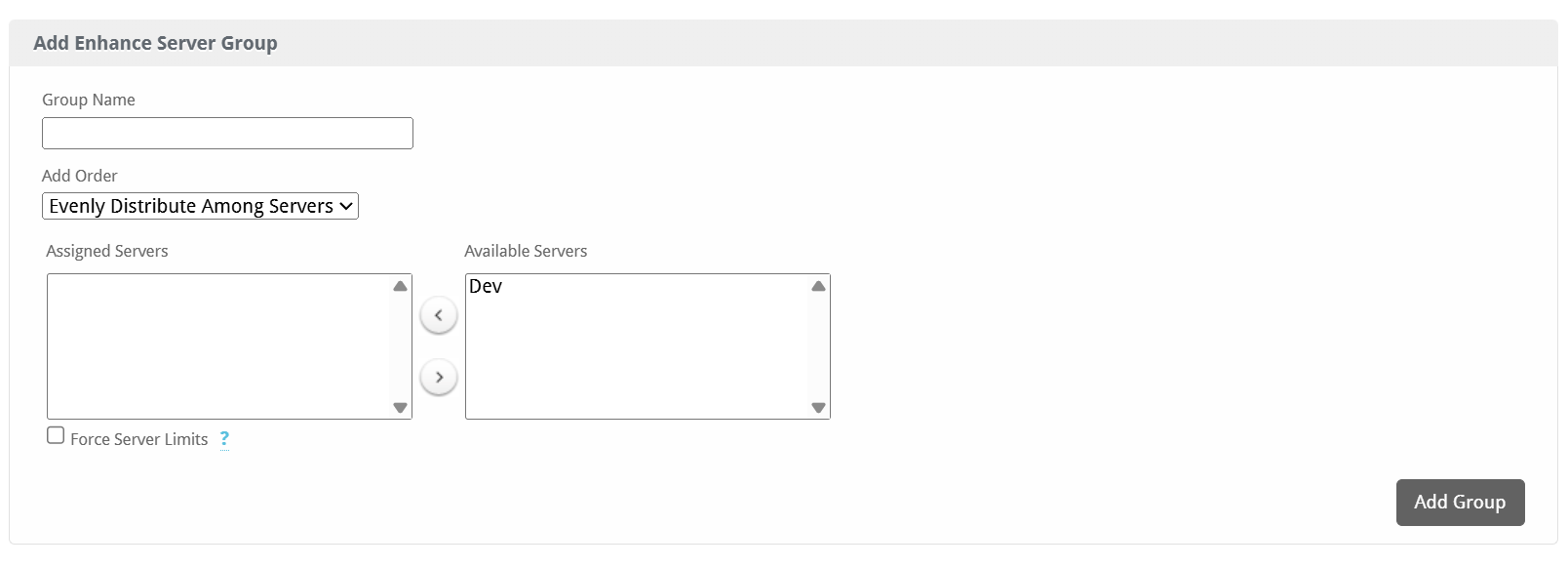
To add a server group, from the Enhance overview at [Settings] > [Company] > [Modules] > Enhance, click "Add Server Group", then enter the details.
| Option | Details |
|---|---|
| Group Name | Enter the name for this server group. |
| Add Order | Choose how servers in this group will be selected for provisioning. Currently, first non-full server is the only add order. |
| Assigned Servers | Select servers under "Available Servers" and click to move them to the left column to add them to the group. |
Creating Packages
Packages define the pricing, welcome email, module and more. Packages can be assigned to Package Groups, and added to Order Forms. To create a Package, visit [Packages] > Browse, and click the "Create Package" button.
Creating a Package consists of several sections:
Basic
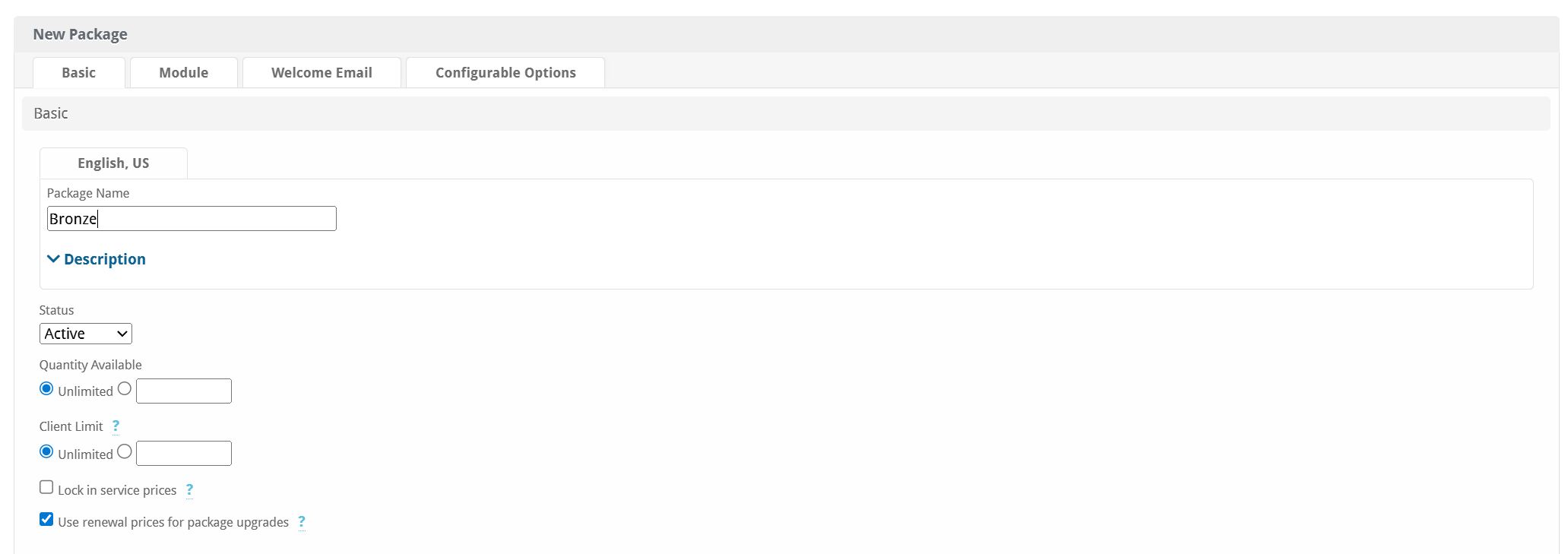
The Basic section consists of the following options:
| Field Name | Description |
|---|---|
| Package Name | Enter the name of this Package, it will be visible wherever services are listed and on any order forms. |
| Status | "Active" is the default, "Inactive", and "Restricted" are also available. |
| Quantity Available | If this Package has a limited quantity available, enter the quantity, or leave it as "Unlimited". |
| Description | Enter a Description for this Package. HTML is allowed, and descriptions appear on order forms. |
Module Options
The Module Options section consists of the following options, which are specific to Enhance:
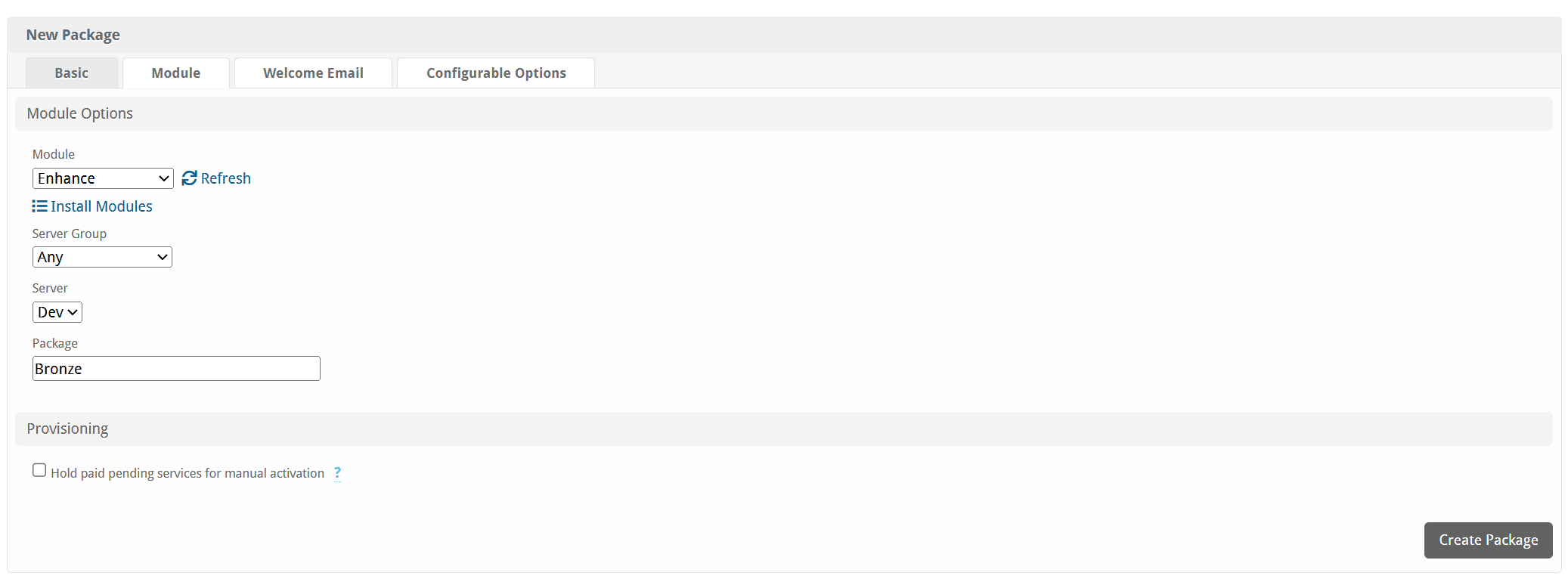
| Field Name | Description |
|---|---|
| Module | Select "Enhance" for the module name. |
| Server Group | Select "Any" if you wish to specify a specific server, or select the Server Group to provision from. Selecting a group means that accounts will be provisioned from the group. Selecting a group is recommended. |
| Server | If "Any" is selected above, select the server this package will use to provision accounts. |
| Package | Select the Enhance Plan to use when configuring accounts. These values are pulled from Settings > Packages created in Enhance and specify resources for the plan. |
Pricing
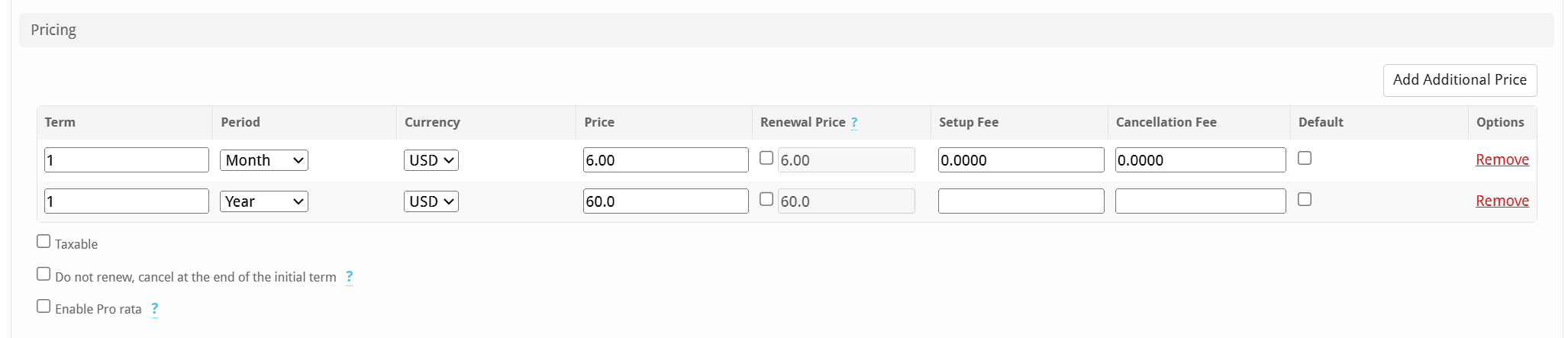
| Field Name | Description |
|---|---|
| Term | Enter the term for the desired pricing option. For example, if you wish to create a 3 month pricing option, enter 3 here. |
| Period | Select the period for this pricing option. "Day", "Week", "Month", "Year", and "One time" are options. The client will be invoiced every "term period", for example every 3 months if 3 is entered for term, and Month is selected for period. |
| Currency | Select the currency this pricing option is available for. |
| Price | Enter the price for this pricing option. |
| Renewal Price | Enter the renewal price for this pricing option if it is different than the price. |
| Setup Fee | If there is a setup fee, enter it here. |
| Cancellation Fee | If there is a fee to cancel early, enter it here. |
Click the "Add Additional Price" to add more pricing options. It's common for people to create 1 Month, 3 Month, 6 Month, and 1 Year price options. There are many possible combinations.
Welcome Email
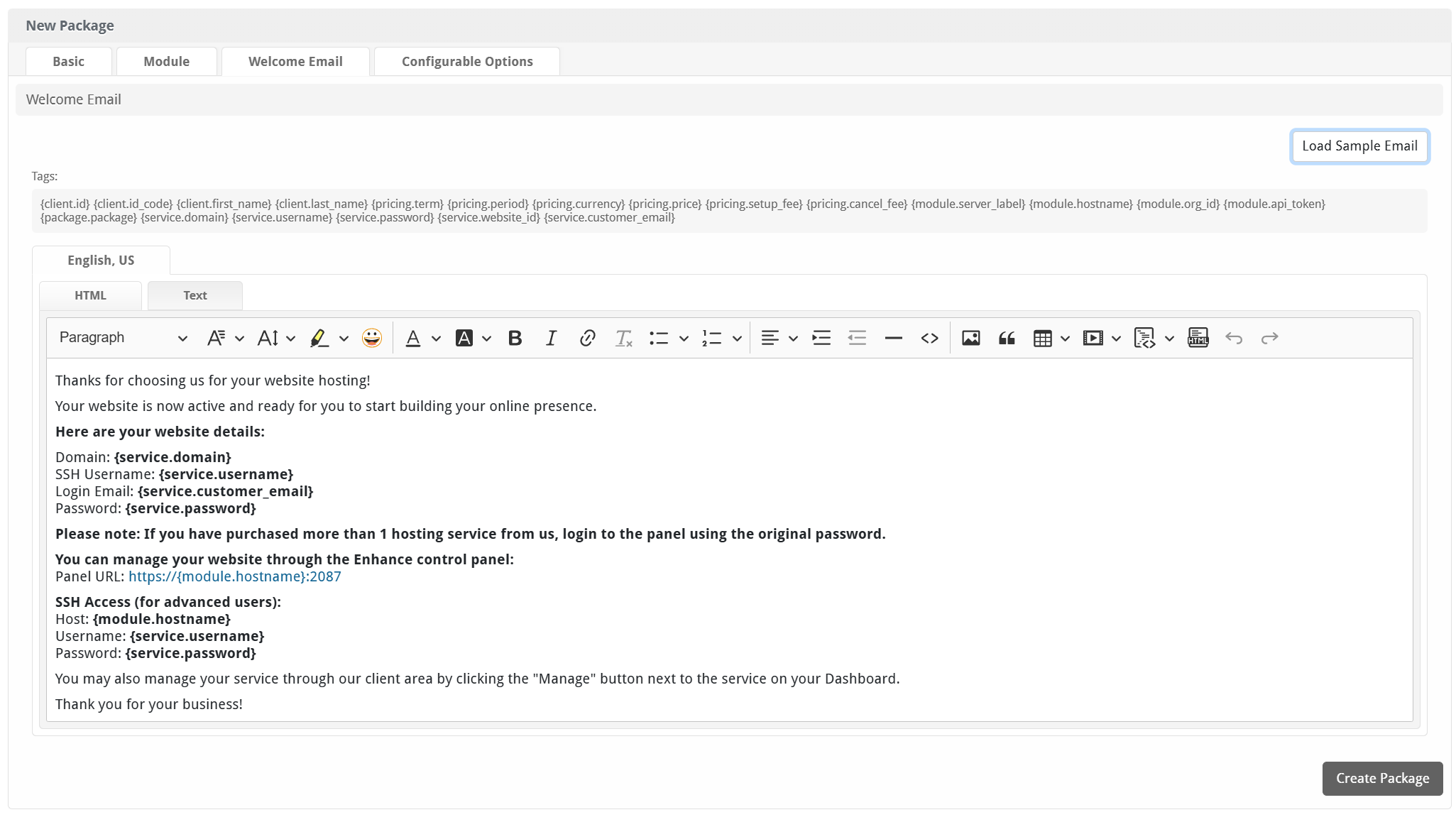
The "Tags" section describes tags that may be used in the welcome email. The welcome email content is inserted into the "Service Creation" email template under [Settings] > [Company] > [Emails] > Service Creation. Only details unique to this service should be entered into the welcome email section for the package.
Sample Email
This sample email could be used in the Package Welcome Email section to help you get started. Be sure to enter content for your welcome email in both the HTML and Text sections.
Thanks for choosing us for your website hosting!

Your website is now active and ready for you to start building your online presence.

Here are your website details:

Domain: {service.domain}
SSH Username: {service.username}
Login Email: {service.customer_email}
Password: {service.password}

Please note: If you have purchased more than 1 hosting service from us, login to the panel using the original password.

You can manage your website through the Enhance control panel:
Panel URL: https://{module.hostname}:2087

SSH Access (for advanced users):
Host: {module.hostname}
Username: {service.username}
Password: {service.password}

You may also manage your service through our client area by clicking the "Manage" button next to the service on your Dashboard.

Thank you for your business!
When creating or editing a package that uses this module, the following tags will be available:
| Tags | Description | Notes |
|---|---|---|
| {module.host_name} | The host name of the server that the service was provisioned on | e.g. "server1.domain.com" |
| {module.name_servers} | An array of available name servers for this module | Array elements must be looped over in the email template. |
| {package.package} | The package meta plan name | e.g. "Bronze" |
| {service.username} | The service field for the Enhance account username | |
| {service.password} | The service field for the Enhance account password | |
| {service.domain} | The service field for the Enhance domain | e.g. "domain.com" |
Displaying Name Servers in the Welcome Email
The {module.name_servers} tag must be iterated over to display the name servers. Email tag usage is elaborated upon on the Customizing Emails page.
Consider an example where the module has two name servers set, named "ns1.domain.com" and "ns2.domain.com". The following can be added to the email template to output the name servers:
{% for name_server in module.name_servers %}
Name server: {name_server}{% endfor %}
The welcome email will display this as:
Name server: ns1.domain.com
Name server: ns2.domain.com
Group Membership
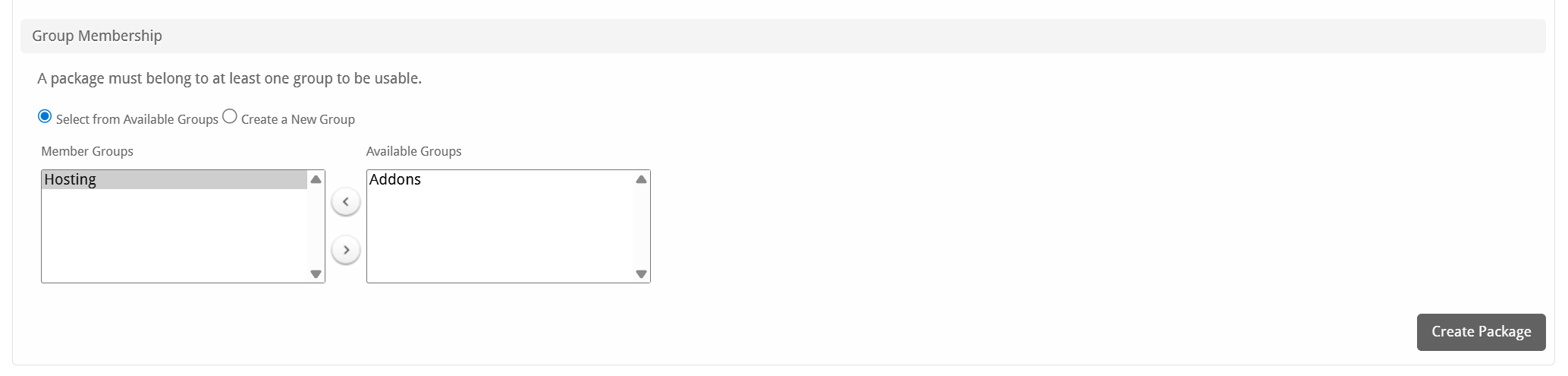
If this is the first Package you are creating with this module, select the "Create a New Group" option, and enter a Group name. If you are adding a subsequent Package and wish for it to be part of the same group, select "Select from Available Groups", and move the group from the right to the left of the multi-select box.
When finished, click "Create Package" to create this package.
Final Steps
The only thing left to do is to add this Package Group to an order form so clients may place orders for your Enhance servers. See Creating an Order Form for more details.
Importing Enhance Accounts
It's sometimes necessary to add Enhance accounts to Blesta that were created manually in Enhance, or in another system. To do so, follow these steps for each account:
- Go to the profile for the client you want to add the Enhance account to [Clients] > [Browse] and click on the client ID, or perform a search.
- Click Add Service under Account Actions on the left, or click the [+] button in the Services widget.
- Select the correct Package for the plan you are adding, and Continue.
- Select the Term, and uncheck the "Send order confirmation" and "Provision using the Enhance module" boxes. You may also wish to select "Do not Invoice" for Invoice method, but this will depend on whether you'd like to create an invoice now or not.
- Enter the domain name and click "Continue".
- The service should be added, now click the Manage icon next to the service on the client's profile page.
- Enter the correct username under the "Username" field, uncheck the "Provision using the Enhance module when activated" option, and save.
- If you need to sync the renew date to a specific day, click on the Manage link for the service again, and select "Change Renew Date" under the Actions drop down. Set the next renew date, uncheck the "Prorate" option, and Save.
- Repeat for each account.